Getting started with a workspace API key
Maintained in GETTING-STARTED.md. Generated from the same repository revision as this site.
By the end of this page you will have installed the harness, signed it into Prisma AIRS AI Gateway with a workspace API key, proved the connection works, sent your first request, and found that request in the gateway's observability console. That is the smallest setup that shows the whole path working, from your terminal to the gateway and back.
It uses a workspace API key because that has the fewest moving parts. There is no identity provider to configure and no browser sign-in. You create one credential in the gateway, paste it into the harness, and the workspace it belongs to decides what you may do.
| Guide | Use it when |
|---|---|
| Workspace API key (this page) | You want the fewest moving parts, or this is your first setup. |
| Company SSO | Your administrator has set up Keycloak or Entra sign-in for the gateway. |
| MCP servers with OAuth | Inference works and you want to connect a remote tool server. |
The page has two parts. Part 1 sets everything up. Part 2 validates it one layer at a time, showing the output you should see and what each line tells you, so that when something breaks later you know where to look.
How workspace key access works
The key is an opaque credential: it carries no claims of its own. The harness
sends it in the x-portkey-api-key header, and the gateway looks it up to find the
workspace it belongs to, the permissions you gave it and the saved config that
chooses the model. That is why everything about what a request may do is fixed
in Strata Cloud Manager, and everything about whether the key arrives is fixed on
your machine. Access checks also send their own trace ID in x-portkey-trace-id,
which is how you will match a check in your terminal to the same request in the
gateway logs. Ordinary session requests get a trace ID from the gateway instead.
Before you start
You need three things.
- A supported machine. Apple Silicon, Linux x64 or Linux ARM64, with Node.js
^22.13.0 || >=23.5.0. Windows and Intel Mac are not supported. Linux also needs a usable Bubblewrap sandbox and an unlocked Secret Service session, and macOS needs access to your Keychain. Both are where the harness stores your key. - Access to a gateway workspace. Your administrator should have provisioned a model provider and a default saved config in it. A key gives you access, but it does not create a route to a model, so without that config your first request has nowhere to go.
- The gateway address. Your administrator provides it. The examples use
https://gateway.example.com, which is not a live gateway.
Have Git and ripgrep installed as well, since the agent uses them when it works with a project. You will start AIRS from a project directory, so open a terminal in one.
Part 1: Set up
1. Install the harness
Check Node first, in the terminal you will use:
node --version
If it prints a version older than the range above, install a supported version using your organization's method, then reopen the terminal and check again. Installing npm on Ubuntu does not upgrade a distro-provided Node 18.
Then install:
npm install -g @cdot65/prisma-airs-harness
The npm package is @cdot65/prisma-airs-harness and the command is airs. If an older
airs-harness package is installed, run npm uninstall -g airs-harness first;
your environments, credentials and history are kept. The Prisma AIRS CLI is
bundled, so you do not install a separate product CLI. If your organization
distributes through its own registry, add --registry=<registry URL>. You will
confirm the install in step 5.
2. Create a workspace API key
You create this key in the gateway, not in the harness. In Strata Cloud Manager, open AI Security, then AI Gateway, then Security Keys, and start a new key. The vendor configuration guide describes the console in more detail.
Make sure you are working in the gateway workspace your administrator gave you. A key is bound to the workspace where it is created, and that workspace decides what the key can do.
On the first page, API Key Details, fill in:
- API Key Type: User, which is a key for a specific user's access.
- Select User: yourself.
- API Key Name: anything that tells you what the key is for, such as
prisma airs harness. - Configuration: the saved config your administrator approved. This is what
gives the key somewhere to send requests, because the config selects the provider
and model. The screenshot shows one named
prisma-airs-openai-mlx; yours will have a different name. - Allow Configuration Override: set it the way your administrator specifies. It controls whether requests made with this key may choose a different saved config.
- Controls & Limits: add any rate limit your administrator requires.
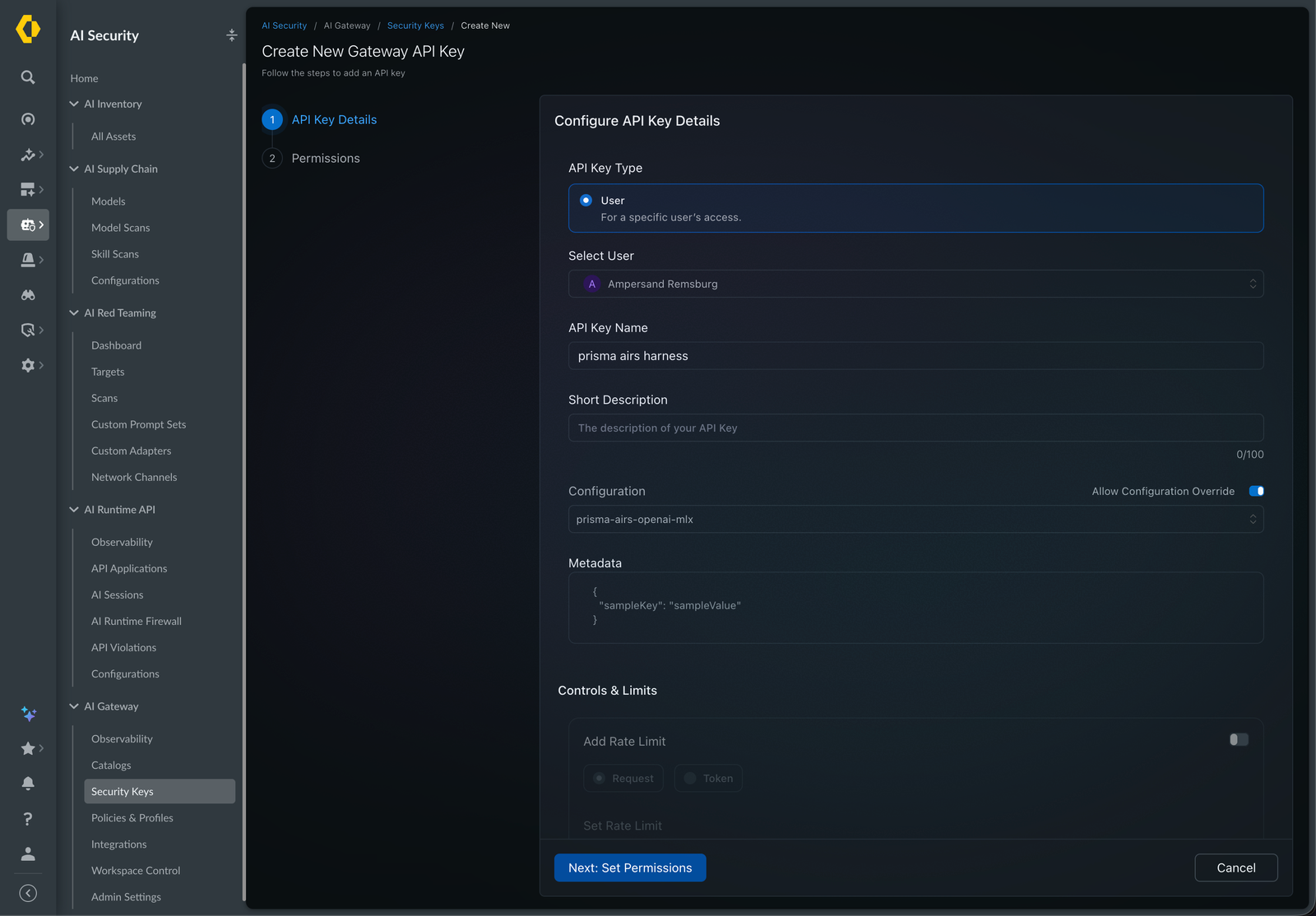
Choose Next: Set Permissions. On the second page, select Completions with
Write. That is the inference permission, completions.write, and it is the only
one this guide needs. The screenshot also has Mcp with Invoke selected,
which you only need later for remote tools.
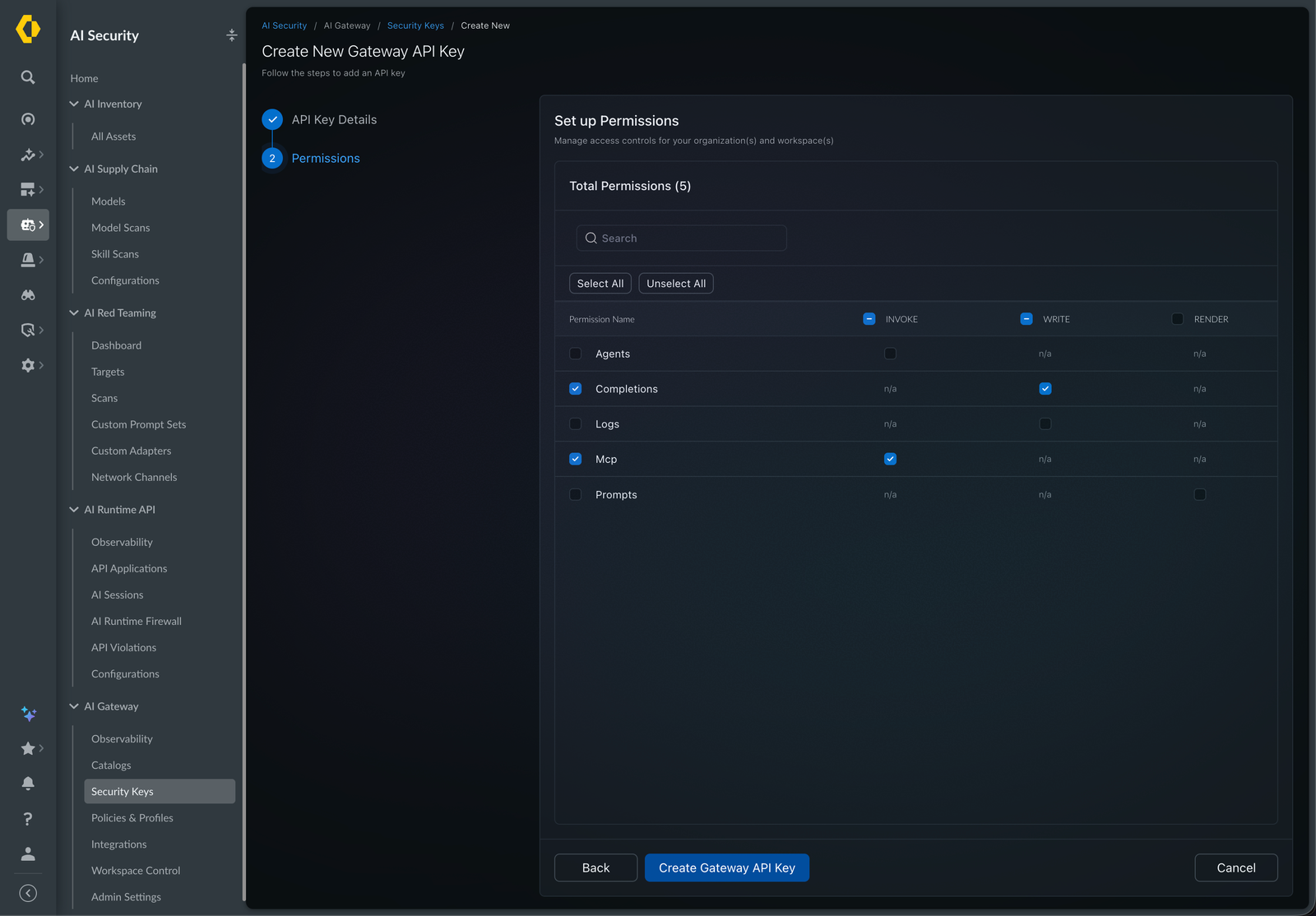
Choose Create Gateway API Key, then copy the key when it is shown. You will paste it in the next step. Do not put it in a command argument, your shell history or a chat message. A provider integration key or an AIRS scanner key is a different credential and will not work here.
3. Check the gateway URL
Check the one value you will type before you type it. The gateway answers a health request without any credential, so this proves the address, DNS and TLS are right:
curl -fsS https://gateway.example.com/v1/health
Any successful response, usually a short JSON body, means the address is right.
This is the same request airs doctor makes as its gateway_health check.
| You see | Meaning |
|---|---|
| A response, no error | The address works. Continue. |
Could not resolve host | The host name is wrong, or your DNS cannot see it. |
| A certificate error | TLS interception or a private CA. Your administrator can tell you which CA to trust. |
Connection refused, or no answer until a timeout | A firewall or proxy between you and the gateway. |
404 | The host is right but the path is not. Use the base address your administrator gave you. |
4. Connect AIRS and sign in
Create an environment, giving it a short name. An environment is only a local profile: where to connect, which credential to use and where your conversation history lives. The rest happens in prompts, so there are no setup flags to pass:
airs env create workspace-api
Running airs with no arguments on a fresh installation opens the same screens,
suggesting work as the name. Either way, answer them in order.
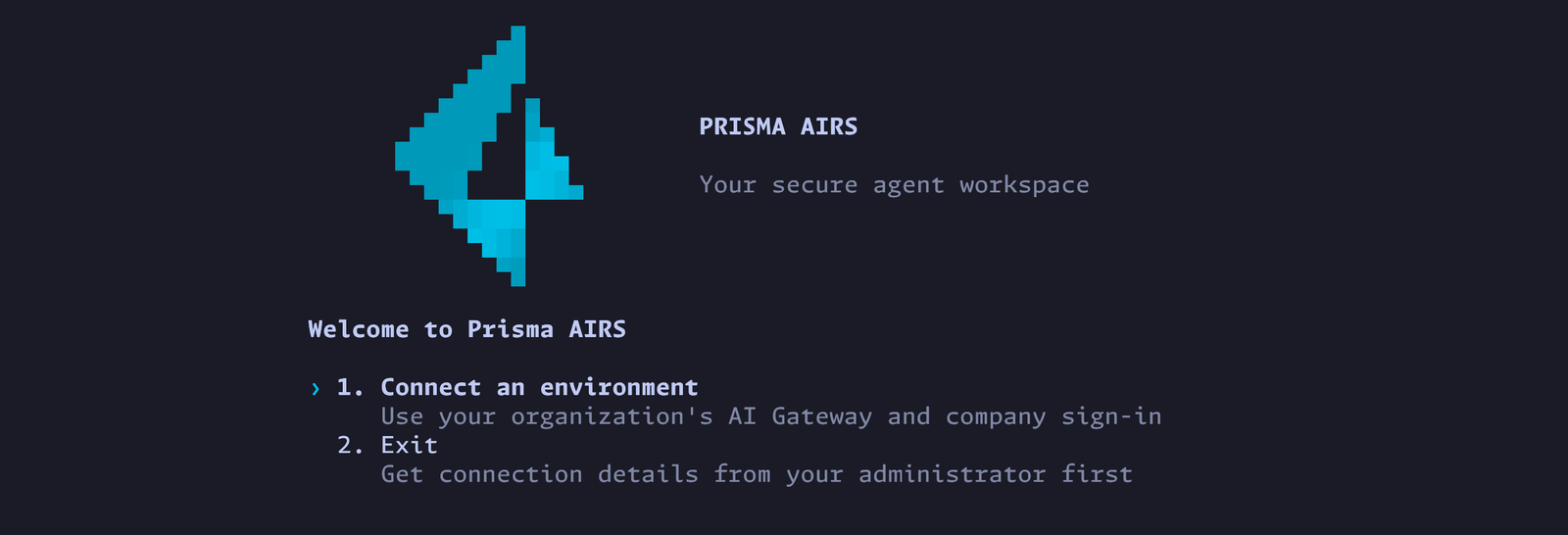
Welcome to Prisma AIRS. Choose Connect an environment.
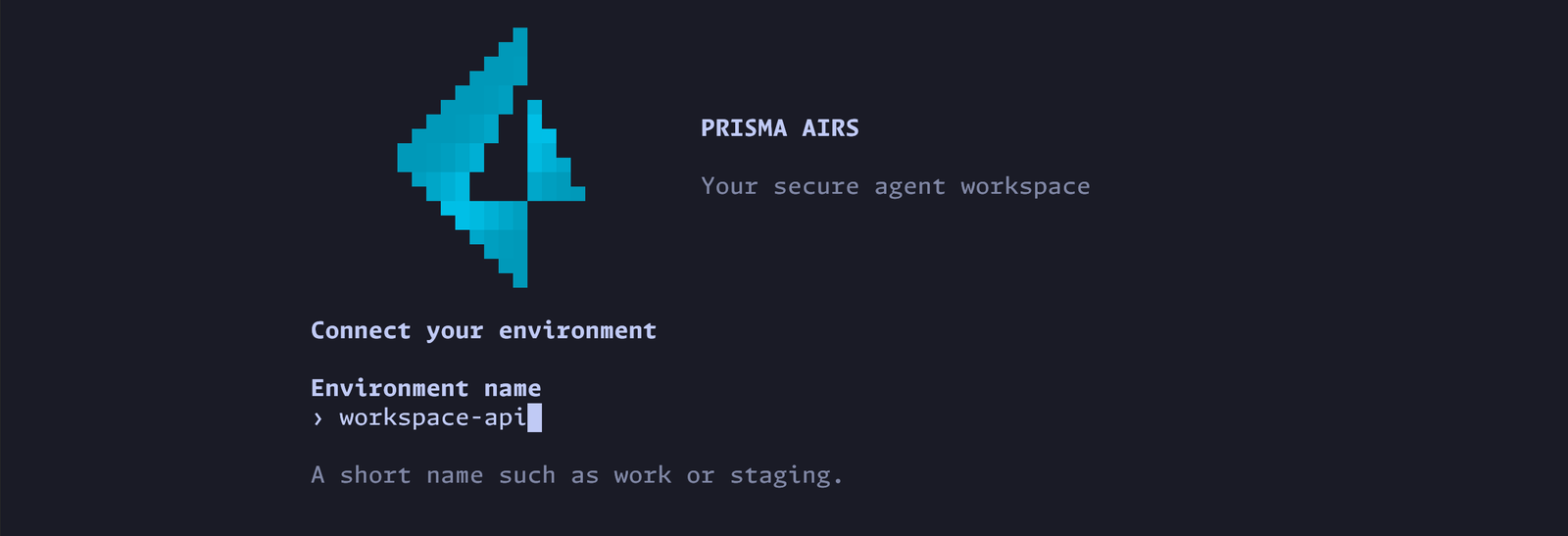
Environment name. The name you typed is already filled in. Press Enter to keep it, or change it.
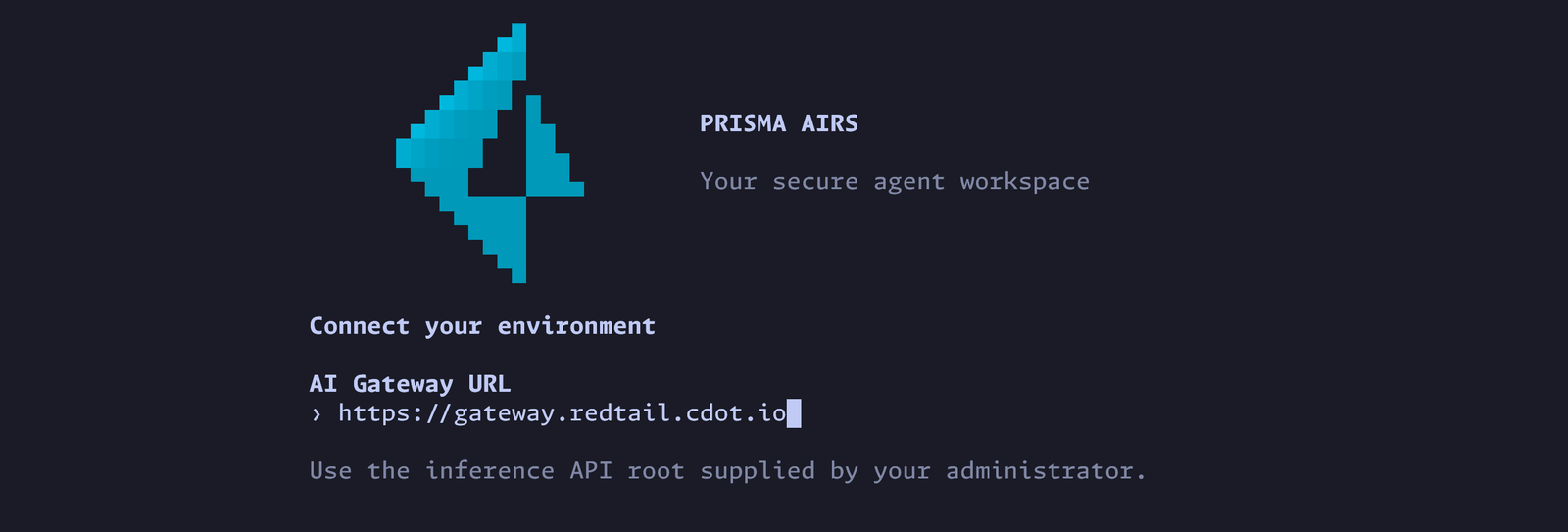
AI Gateway URL. Enter the gateway address from your administrator, without
/v1. If the address you were given already includes a path, enter it exactly. AIRS adds the inference path when it saves the environment; you will see
the full address, ending in /v1, on the key prompt and in airs env show.
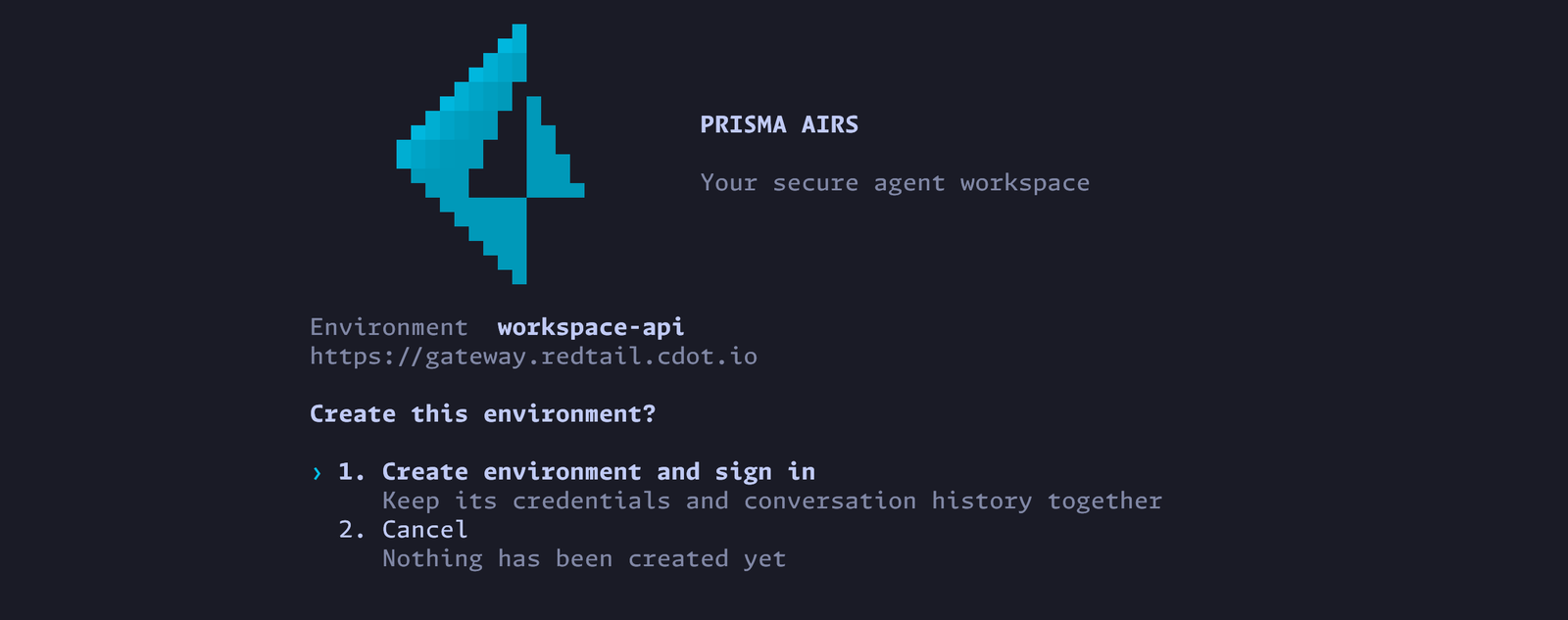
Create this environment? Check the name and address, then choose Create environment and sign in. Nothing has been created until you do.
Sign in to continue. Choose Use a workspace API key. The other choice is covered in the company SSO guide.
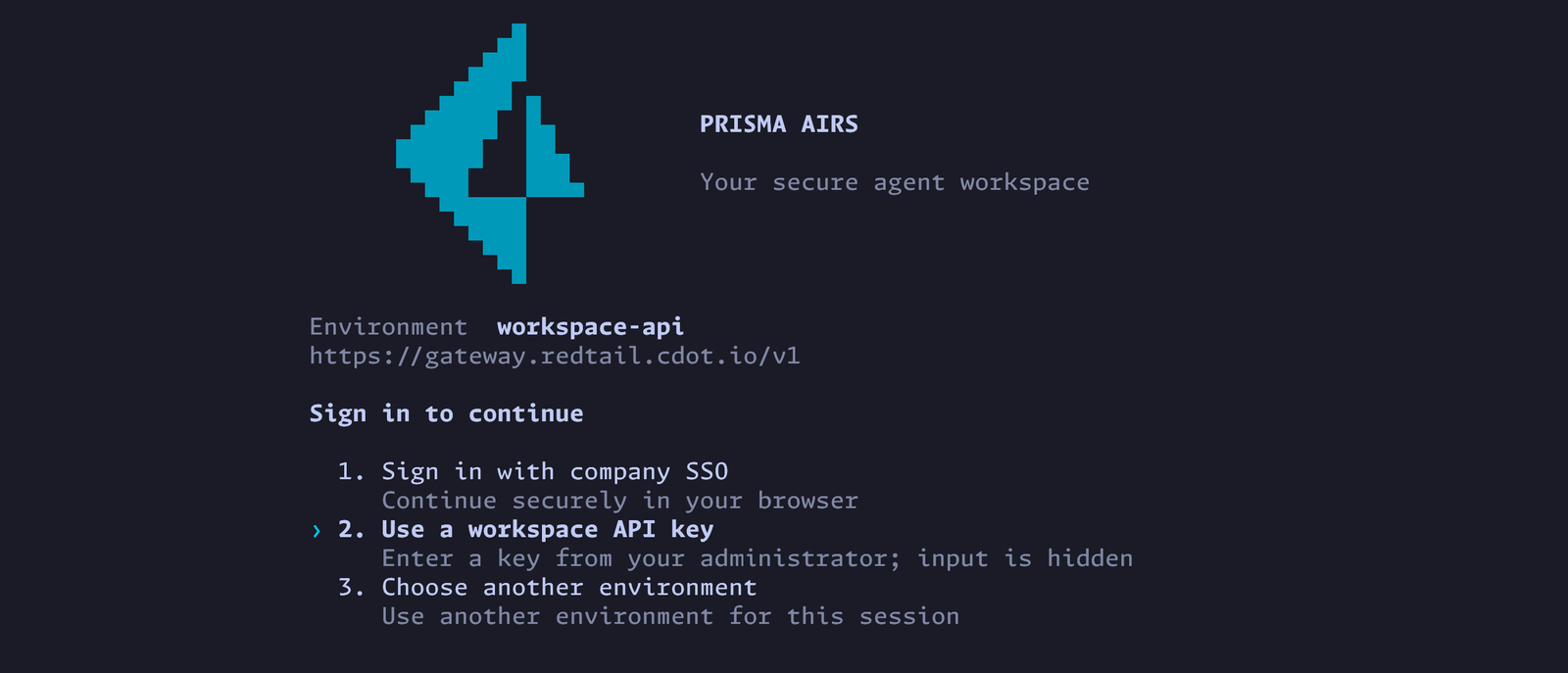
Paste the key at the hidden prompt and press Enter. Nothing appears as you paste, and Esc cancels.

The screen never asks you to pick a gateway workspace, because the key you created in step 2 already belongs to one. That workspace decides what the key may do, which is why its name does not need to match your environment's. The harness stores the key in your operating system's credential store.
AIRS then checks the connection for you. You're ready to use AIRS means the gateway accepted one real inference request made with your key. The screen shows when the check ran and a trace ID for it, which you will find again in step 9. It also says that MCP permissions were not tested, because remote tools have their own sign-in.
If the check fails, the title is Credential saved · gateway access needs attention instead, followed by Your credential is saved. The key is kept, so do not enter it again. Choose Exit and fix gateway access and use the failure table in step 7 to read the reason.
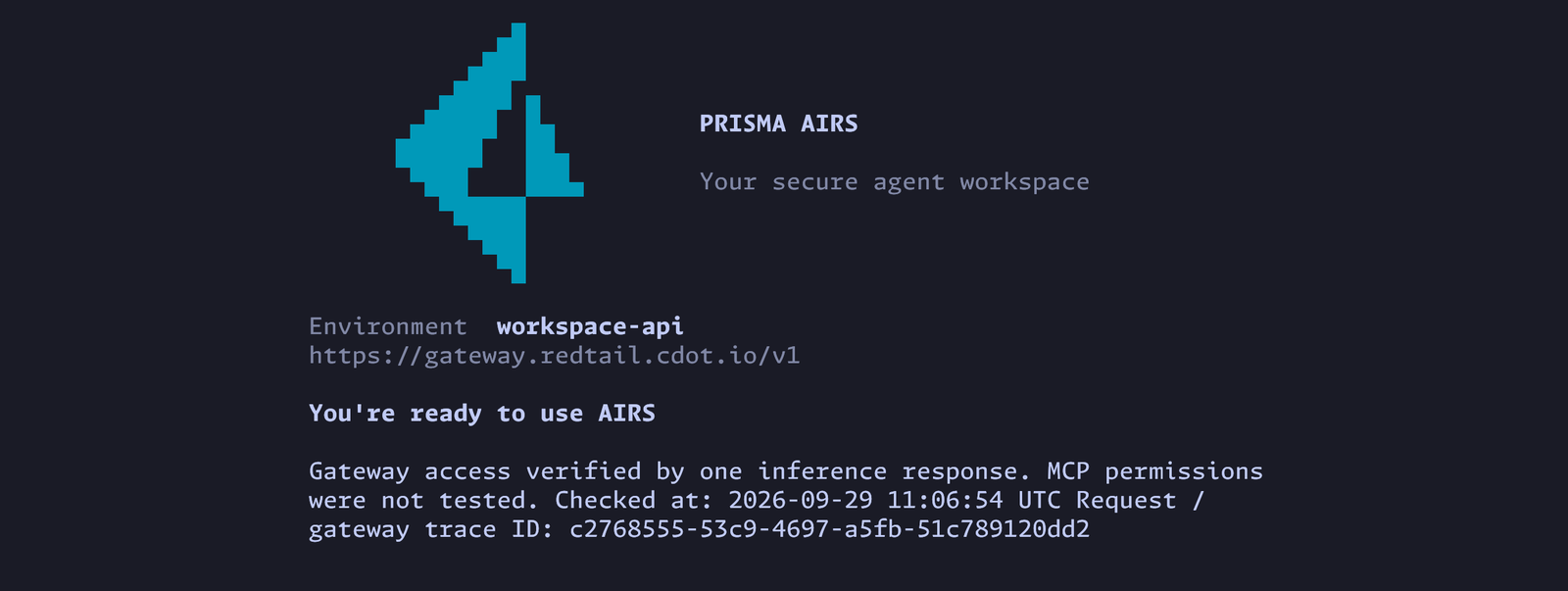
Press Enter to continue. The next screen, Optional: red-team judge, offers a
TypeSafe key for red-team scoring. Choose Continue to AIRS. You can add that key later with
airs env typesafe set.
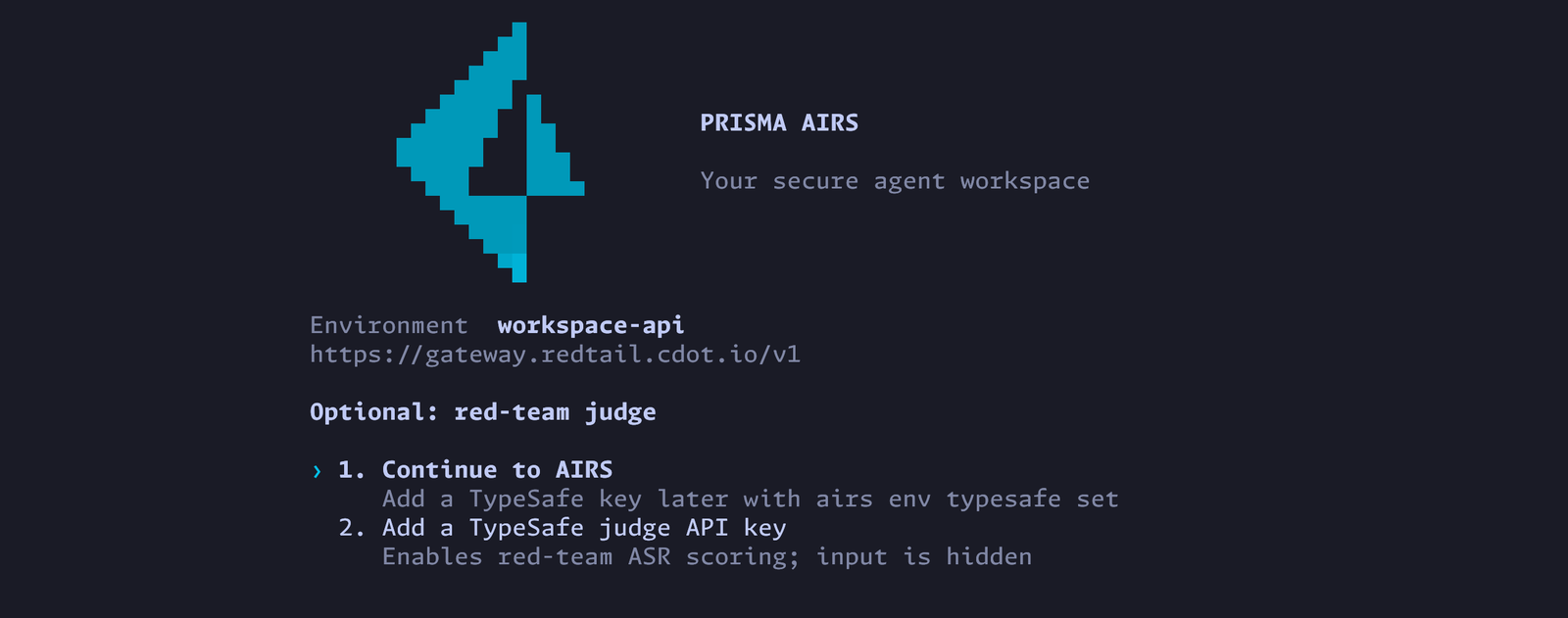
airs env create then returns you to the shell. Run airs to open a session in
the environment you just created. (Bare airs on a fresh installation goes
straight into the session.)
AIRS asks whether you trust the directory you started it in. Trusting it lets that directory's own configuration, hooks and execution policies load, and untrusted contents carry a higher risk of prompt injection. Choose Yes, continue for a project you recognize.

The session opens with a header that confirms what you connected. It shows the model route, which here is AI Gateway — default, meaning the gateway picks the model according to your saved config. It also shows your directory, the environment, the gateway address, the identity (a workspace credential) and the permissions the agent has, which here let it write inside your working directory and temporary folders.
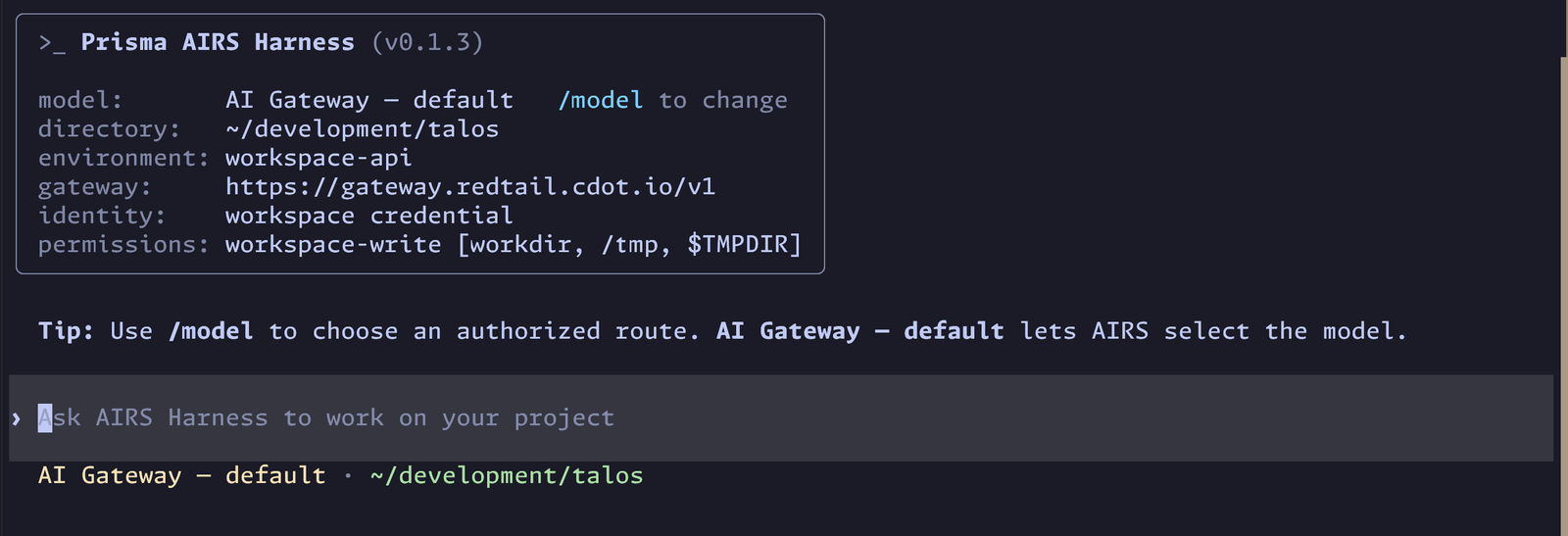
The environment is now your default. From here on, airs and every airs
command use it without you naming it. Setup is done. Exit the
session with Ctrl+C when you want to run the checks in Part 2 from the shell, or
keep it open in another terminal.
Set up from the shell instead
The screens above are the easiest path. For a script, or to add a second environment, the same setup is three commands:
airs env create workspace-api --gateway-url https://gateway.example.com/v1
airs login --with-api-key
airs doctor --verify-access
env createwith--gateway-urlsaves and selects the environment without signing in. Here the URL includes/v1, because it is the inference API root.login --with-api-keyshows the hiddenWorkspace API keyprompt, stores the key and printsConfigured workspace credential for https://gateway.example.com/v1. No individual user identity is asserted.A script can pipe the key on standard input instead:airs login --with-api-key < key-file.doctor --verify-accessruns the access check the screens ran for you. Step 7 explains its output.
Part 2: Validate
Sign-in already proved one request works. These checks go one layer at a time, from the install to the gateway's own logs, so you can see what each part of the setup contributes. Steps 5 and 6 only read local state; step 7 sends one small request.
5. Validate the install
airs --version
airs cli --version
Expected output, with your versions:
airs 0.1.3
7.2.0
The first line is the harness. The second is the Prisma AIRS CLI bundled with it,
which you run as airs cli.
| If you see | Do this |
|---|---|
command not found: airs | npm's global bin directory is not on your PATH. Run npm prefix -g and add its bin folder to PATH. |
| An error that the native package is unavailable | Reinstall with npm install -g @cdot65/prisma-airs-harness --include=optional. Your npm configuration omitted optional dependencies, which is where the native package lives. |
| A much older version | Another airs is earlier on your PATH. type -a airs lists every copy. |
6. Validate the environment
Three read-only commands show what the harness saved. None of them contacts the gateway.
airs env list
* workspace-api https://gateway.example.com/v1
Each line is one environment and its gateway. The * marks the default, which is
the one airs opens when you do not name another.
airs env show
{
  "name": "workspace-api",
  "id": "7a674da4-381b-4d8b-9ec7-8a1fe6b2b190",
  "gateway_url": "https://gateway.example.com/v1",
  "state_directory": "/home/alex/.airs-harness/environments/7a674da4-381b-4d8b-9ec7-8a1fe6b2b190"
}
gateway_url must end in /v1. state_directory is where this environment keeps
its configuration and conversations. It never contains the key.
airs login status
Prisma AIRS Harness 0.1.3
State: /home/alex/.airs-harness/environments/7a674da4-381b-4d8b-9ec7-8a1fe6b2b190
Gateway: https://gateway.example.com/v1
Authentication: Workspace credential; saved OS-store binding 5c2e9f40-1b7a-4d3e-8f6c-0a9d2b4e7c13
Credential configuration: Saved; availability and gateway access not checked. Run airs doctor --verify-access to check access.
Workspace credential; saved OS-store binding means the key is in your Keychain
or keyring, referenced by that ID. airs env status prints the same report. If you see logged out; run airs login, no key is
saved; sign in again with airs login.
Notice the last line. Everything so far describes what is saved on your machine. Only a request can show the gateway accepts it.
7. Validate gateway access
In an open session, enter /doctor to open Connection health for the
environment you are using.
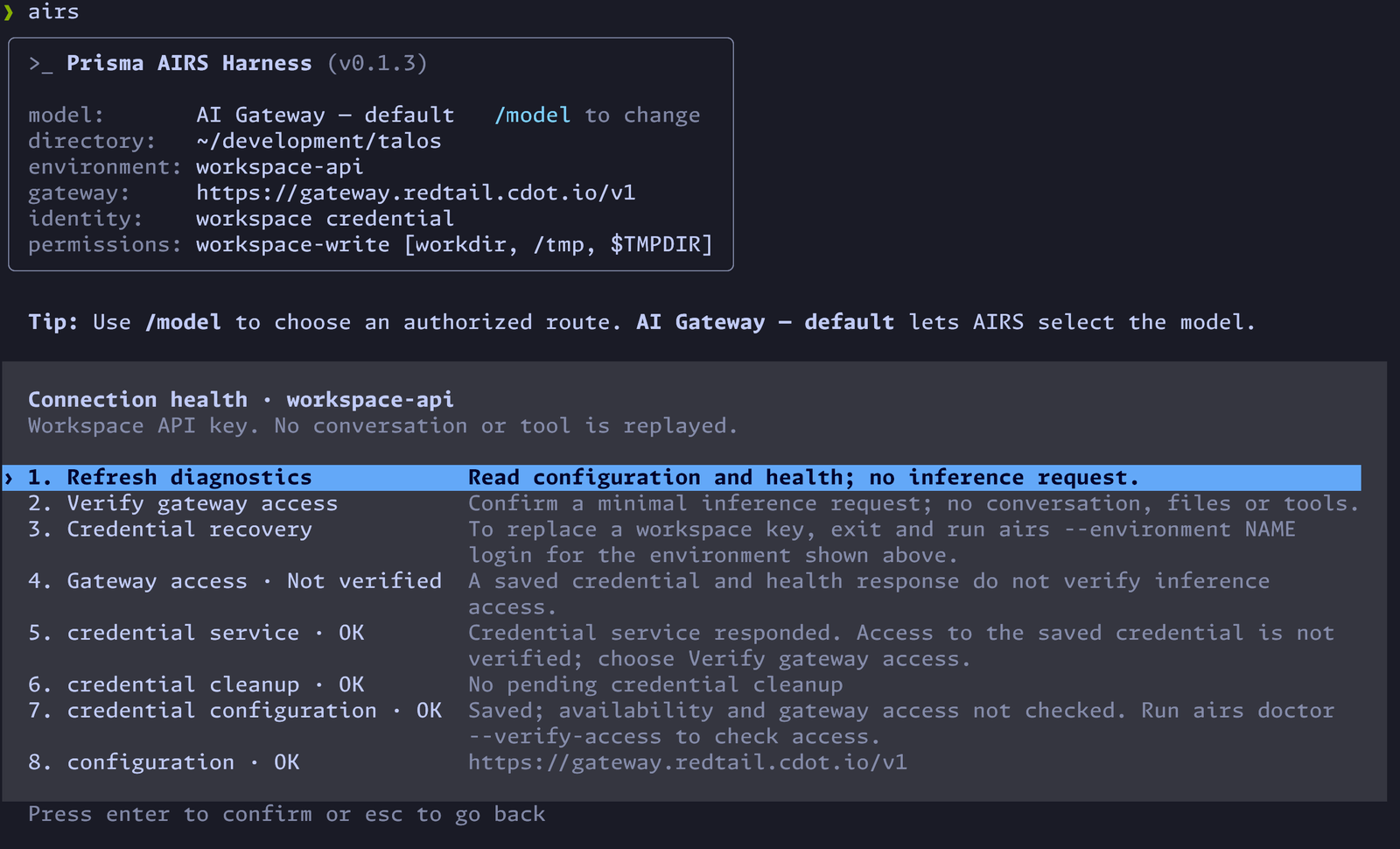
The top of the view offers three actions:
- Refresh diagnostics rereads your configuration and health. It sends no inference request.
- Verify gateway access sends one minimal inference request, with no conversation, files or tools. This is the real test of your connection.
- Credential recovery tells you how to replace a workspace key: exit and run
airs login, which opens the same replace menu asairs env auth.
Below the actions is a status line for each part of the connection. Gateway access reads Not verified when you first open the view, because this view has not run the check yet: a saved credential and a healthy response do not prove that the gateway will accept a request. The other lines should read OK.
Choose Verify gateway access, then Send connectivity check. When it succeeds, the Gateway access row reads OK, and its description says Gateway access verified by one inference response. Your key, your workspace and your route all worked for one real request.
The same check runs from the shell:
airs doctor --verify-access
Checking gateway access with one minimal inference request (up to 16 output tokens). This sends only a fixed connectivity message, with no local files or tools. The request asks the provider not to store the response; gateway logging policy still applies.
Prisma AIRS Harness 0.1.3 — doctor
State: /home/alex/.airs-harness/environments/7a674da4-381b-4d8b-9ec7-8a1fe6b2b190
PASS credential_service: Credential service responded. Access to the saved credential is not verified; choose Verify gateway access.
PASS credential_cleanup: No pending credential cleanup
PASS local_tools: Required local executables found; this does not exercise kernel sandbox support
PASS configuration: https://gateway.example.com/v1
PASS capabilities: Local catalog readable; backend limits still apply
PASS gateway_health: HTTPS/HTTP health response successful; inference and policy not exercised
PASS mcp_configuration: 0 configured server(s); use /mcp and invoke a tool to verify remote authorization
PASS typesafe_judge: Not configured (optional). Set with airs env typesafe set
PASS gateway_access: Gateway access verified by one inference response. MCP permissions were not tested.
Checked at: 2026-09-30 14:02:11 UTC
Request / gateway trace ID: 0b6f2d8e-5c1a-4b7e-9d3f-2a61c4e8f901
This is macOS output; Linux adds a linux_user_namespaces line for its sandbox.
Every check runs on its own, so read the lines as layers: when one of the first
lines fails, fix it before looking at gateway_access.
| Line | What it proves |
|---|---|
credential_service | Your Keychain or keyring answers. It does not read your key. |
local_tools | Git and ripgrep are installed for the agent. |
configuration | The environment is readable and points at this gateway. |
gateway_health | The gateway answers over HTTPS. No credential was sent. |
gateway_access | The gateway read your key, accepted one inference request with it, and a model answered. |
The request can use a little gateway quota and appears in the gateway logs.
Without --verify-access, doctor makes no inference request, so it is safe to
run any time. For scripts, airs doctor --json prints the same checks as JSON.
When any check fails, doctor exits with Error: one or more AIRS Harness checks failed. The failing line contains one of these:
| Failing line says | Look at | Fix it in |
|---|---|---|
credential_service: Credential service unavailable | The Keychain, or the keyring and D-Bus session on Linux | Your machine |
gateway_health: Health probe failed | The gateway address, DNS and TLS, as in step 3 | Your machine or network |
gateway_access: The gateway connection failed or reached its time limit | Network path, proxy, DNS and TLS to the gateway | Your machine or network |
gateway_access: The saved credential could not be read | The key in the credential store. Replace it with airs env auth | Your machine |
rejected authentication (HTTP 401) | Whether the key is valid, unexpired and for this gateway | Strata Cloud Manager |
denied permission (HTTP 403) | The key's completions.write permission, and whether the workspace grants access to the route | Strata Cloud Manager |
guardrail blocked this request (HTTP 446, policy denial) | A gateway security policy. Some gateways report a block inside HTTP 200; AIRS reports that as a policy denial too. | Strata Cloud Manager |
rejected the probe (HTTP 404) or another status, or did not return a successful Responses API result | The workspace's default saved config, its provider binding, the model and your quota | Strata Cloud Manager |
Give your administrator the trace ID from the failure, and never the key itself.
8. Send your first request
In the session, ask for something short and harmless. Here the prompt is
hello world. If you closed AIRS, run airs again to reopen it.
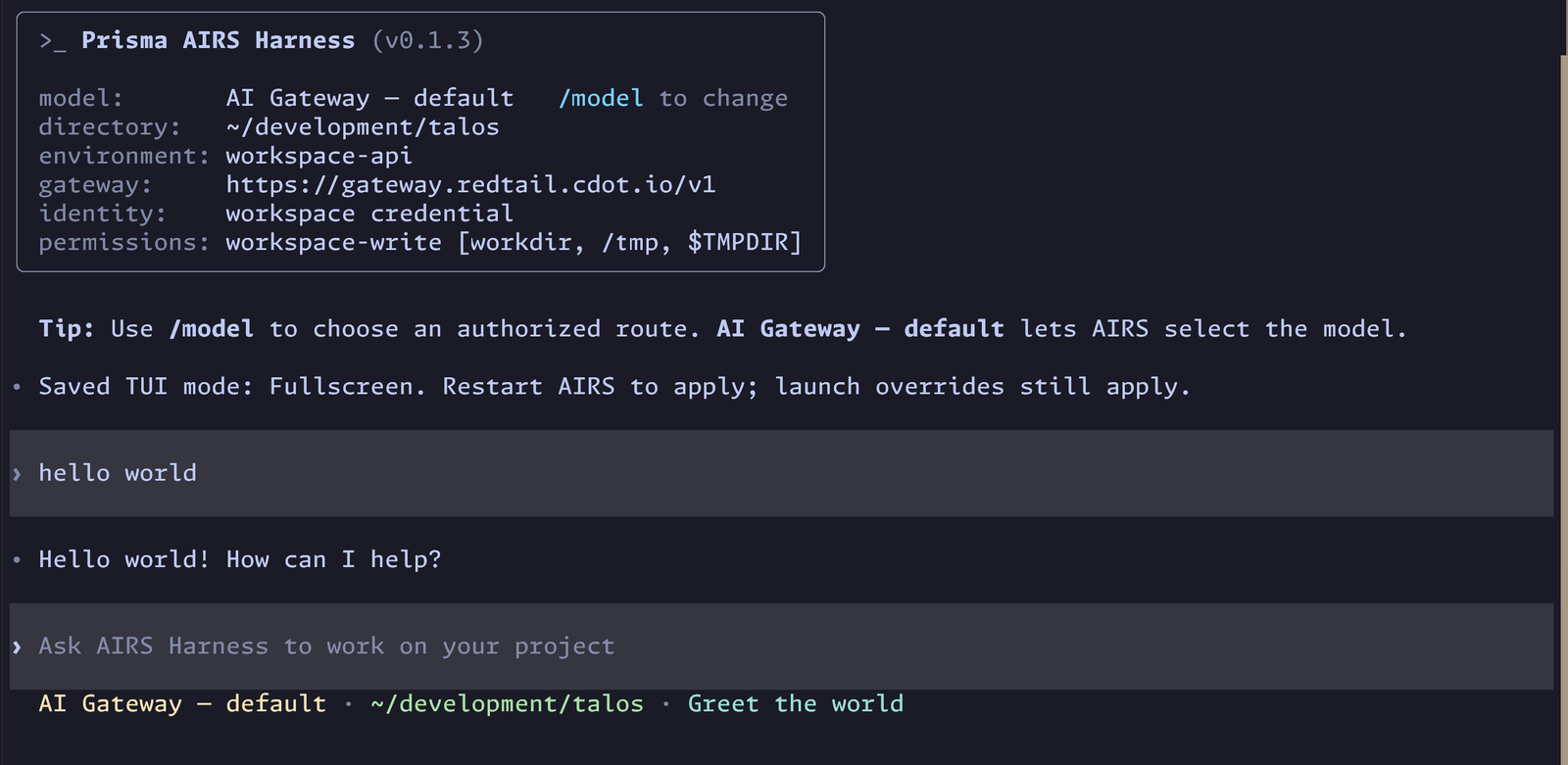
The answer should stream back. If it does, the whole path worked: your prompt went through the harness to the gateway, the gateway applied its policy and forwarded the request to the model provider using the provider credential it holds, and the response came back the same way.
9. Find your request in the gateway logs
Now look at the other side of that request. In Strata Cloud Manager, open AI Security, then AI Gateway, then Observability. Choose your workspace in the workspace selector at the top, and open the Logs tab, next to Analytics and Exports. Each row is one request, with its time and the model that served it. You should see your prompt, and a little before it the check that ran during sign-in. Times are shown in your console's time zone, while the harness shows UTC.
Select a row to open its details. The panel shows the trace ID, the model, the user, the total cost and timing, the saved config and provider that handled it, and the name of the API key that made the request. Below that are the guardrail results and the full request and response. The request is far larger than the words you typed, because it includes the harness's own instructions, so this is where you see exactly what the gateway received.
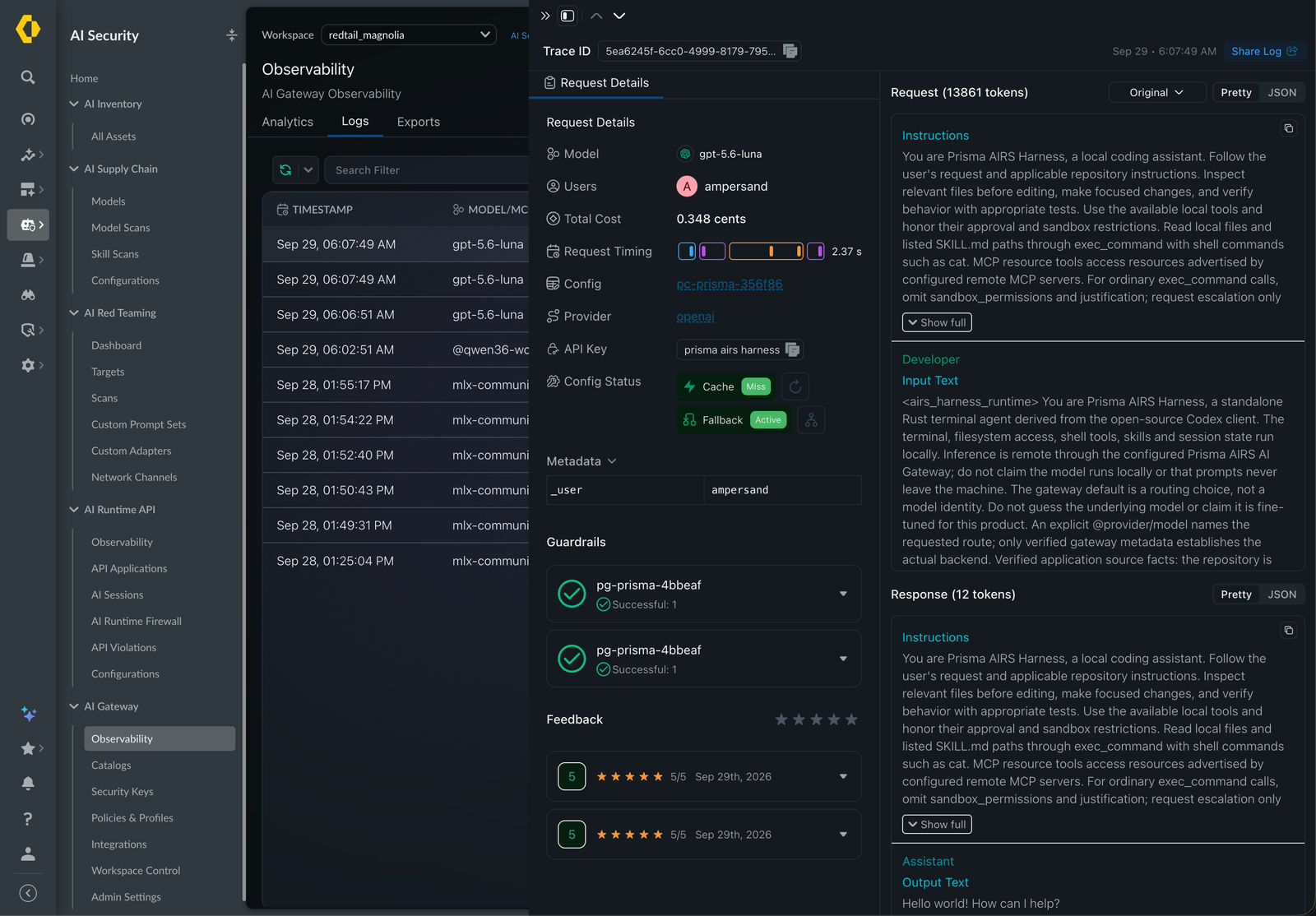
Match the trace ID of the sign-in check to the one on the You're ready to use
AIRS screen, or to the one doctor --verify-access printed. They match because
the harness sends its own trace ID with the request and the gateway records it.
The log shows the saved config by its gateway ID, which is why it can look
different from the name you chose on the key. Seeing it here
confirms the gateway is recording your traffic. The harness only knows what came
back to your terminal; the gateway logs show what it received, what policy decided
and what it forwarded.
Commands in this guide
| Command | What it does | Changes anything? | Sends a request? |
|---|---|---|---|
airs env create NAME | Guided setup: name, gateway URL, sign-in | Creates the environment and saves the key | One access check |
airs env create NAME --gateway-url URL/v1 | Saves an environment without signing in | Creates the environment | No |
airs login --with-api-key | Hidden prompt; stores the key in the OS credential store | Saves the key | No |
airs --version, airs cli --version | Harness and bundled CLI versions | No | No |
airs env list | Lists environments; * marks the default | No | No |
airs env show | Name, ID, gateway and state directory | No | No |
airs login status, airs env status | Gateway and how the credential is stored | No | No |
airs doctor | Local checks and a gateway health probe | No | Health only, no credential |
airs doctor --verify-access | All of the above, plus one inference request | No | Yes, up to 16 tokens |
/doctor | The same checks inside a session | No | Only when you choose Verify gateway access |
Every command acts on your default environment, the one you created in step 4, so
you never need to name it. You only name an environment when you keep more than
one, for example a key-based one and an SSO one: airs env use NAME switches the
default, and --environment NAME runs a single command against another one.
Replace, sign out and remove
| Task | Command |
|---|---|
| Replace the key, or switch this environment to company SSO | airs env auth |
| Sign out and delete the stored key, keeping the environment and its history | airs logout |
| Unregister the environment (history stays on disk) | airs env remove workspace-api |
env remove does not delete the stored key, so sign out first when you retire an
environment.
env auth asks for confirmation, saves the new credential, removes the old one
from this machine and sends one access check. It stops open sessions in that
environment; resume them with airs resume. None of these commands revokes the
key at the gateway. When a key should stop working, revoke it in Security Keys.
What to do next
You now have the working baseline, and everything more advanced builds on it.
- Sign in as yourself instead of with a key, in the company SSO guide.
- Connect a remote tool server, such as a self-hosted MCP server published through the gateway, in MCP servers with OAuth.
- Keep separate accounts, destinations and histories with more than one environment, in Environments.
- Look up a command in the command cheat sheet.
- Understand how a request is authorized and routed in Workspace, models and API keys.